Showing posts with label sharepoint. Show all posts

Thursday, June 12, 2008

Expanding Sharepoint on the Web

In a previous article I talked about how we, at CCM, have taken our Internal WSS 3.0 (Sharepoint - Free Version), and are now publishing the Church Calendar to the Internet in a live fashion using Web Services.  Yesterday was a great day for us when our programmer completed our second Sharepoint on the Web project.

One of my big pet peeves is that data should always be current and we shouldn't have to enter it more than once.  Our staff directory on the web always seemed to lag far behind all our other systems.

So enter Sharepoint.  We had already been keeping all our staff contact information in a WSS list, so to me it's only natural to connect that data to the web site as well.

Untitled-1

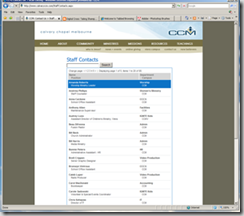
After some frustration and little work we now have a fully functional staff contact list that is searchable, and always up to date on the website.  Thanks to Richie the programmer (who I am encouraging to start a blog and share more howto) for getting this all online.

Check out our new Staff Contact List on the CCM Website!
2

Sunday, April 27, 2008

Taking Sharepoint Calendars to the Web

There are many times in my career that I have ideas, and this is no exception. About a year and half ago, I had an idea... An IT guy idea. Lets get the data in one place, and then connect everything to that. As a truly lazy computer person, I hate, abhor the idea of repetitive tasks...That's why I like computers.

About a year ago, I shared an idea with my programmer about publishing a Sharepoint calendar to our website live...embedded in the page with no visible links back to Sharepoint.

About a month ago, my programmer, Richie, came back to me and wanted to tackle the project. About two weeks our beta went online, and last week we went live with a new breed of calendar.

http://www.calvaryccm.com/community/eventscalendar.aspx

This link takes you to a Flash Calendar that is reading it's data from Sharepoint WebServices on our back end Sharepoint site (our Intranet), and pumping in to the Flash App as an XML Document.

What is so totally cool about this is that it allows all of our ministries to publish their calendar information through standard methods (ie Sharepoint), and not have to learn something new. We are working on expanding this idea to include Categories (Each Ministry) and some of our larger venues as locations. We are also incorporating some really cool filtering so that each ministry can have their own calendars still based off the original idea.

When I found out that there were 12 calendars that all needed to be kept current...Well that blew my mind.

Thanks Microsoft, Thanks Sharepoint, Thanks Richie.... My hat is off to you for making this happen.

More to come on the Publishing Sharepoint Idea.

Monday, October 22, 2007

Sharepoint: Moving a Site Up / Down

There is a really cool way that you can move a sharepoint site up or down in your hierarchy.

Let's say you created a sharepoint site your root level (ie http://intranet/website) and six months later you decide it really should be contained under your IT subsite (http://intranet/it/website). You can use the program STSADM to move a site from one location to another.

Steps to move a WSS subsite.

1. Create the new target URL (I created a blank site @ http://intranet/it/website)
2. Fire up the command line
3. CD \"Program Files\Common Files\Microsoft Shared\web server extensions\12\BIN"
4. Export the old URL using the following Command:

stsadm -o export -url http://intranet/website -filename c:\test\backup.cmp

5. Import the file back into Sharepoint using the the following command:

stsadm -o import -url http://intranet/it/website -filename c:\test\backup.cmp

That's it! You have moved your website. You need to check user permissions especially if you are moving to a new subsite!

OTHER COOL STUFF: There is an option to -includeusersecurity while you do the export. You can also choose whether or not to pull all the revisionhistory over with the doc libs or not...

For a full view of options for Export / Import, run the following commands to see all your options:

stsadm -o export

stsadm -o import

These will print out all your possible options for doing these two operations!

Sharepoint: Automated Backups using STSADM

During the recent IT Roundtable Podcast there was discussion about SharePoint and how to automate the backup process.

We are using WSS 3.0, not the full blown MOSS (Microsoft Office Sharepoint Server) software.

The following is my exact backup command (inside a batch file that is scheduled to run every night at 11:00pm):

c:

cd "\Program Files\Common Files\Microsoft Shared\web server extensions\12\BIN"

stsadm -o backup -directory
\\ccm-gallery\ITBackup\ccm-sps\Sharepoint -backupmethod full

Basically this command does a full farm backup of your sharepoint environment into a subfolder. This will backup all necessary sharepoint databases / configurations / xml files ect that are need to recreate the sharepoint site.

WARNING: This will take care of everything inside of the Sharepoint WSS environment. If you customize anything outside of the environment (ie: create new master pages, implement FBA, or other alternative authentication schemes) - you will need to back these up seperately!

For safety sake, I run the STSADM commands automatically, then I also drop a full backup of the C:\InetPub folders.

When I restored my server recently, our intranet (plain vanilla WSS 3.0 Site with Windows Auth) restored in about 5 minutes after the server was rebuilt.

WARNING #2: The backup script I have proposed here creates a new subdirectory every time a backup takes place and drops the whole farm there. For us this is about 1.2 GB every time there is a backup. So make sure you keep that area fairly clean. We are doing backups to another server with 500Gb just for doing these kind of backups!

This command is just built into Sharepoint... Works great!